Buying clothes online is convenient, the choice is huge and there’s no queue for the fitting room. But almost everyone has received something that looked great in the photo and simply didn’t work once it was on. The reasons usually fall into three groups: the shape doesn’t suit your body, the colour doesn’t suit your skin, or the size is off. The five steps below deal with each one, in an order you can follow tonight with your phone and a tape measure.
Why online clothes so often miss
Before the steps, it helps to look closely at the three causes, because each needs a different fix.
The wrong shape
Product photos are usually shot on tall, slim models in carefully arranged poses. A cropped top that looks balanced on a tall frame can cut a shorter person in half visually. Wide-leg trousers that look elegant on a model can swallow a smaller build. The problem isn’t the garment; it’s that you haven’t seen it on your own body.
The wrong colour
Colour on a screen depends on the studio lighting, the photo editing and even your own phone’s display. A “mint” top can arrive looking like a deep green. And a colour that flatters the model won’t necessarily flatter your skin tone.
The wrong size
Every store has its own size chart. A medium in one shop can match a large in another. Letters like S, M and L tell you very little unless you compare them with real measurements.
1. Measure yourself once
Grab a tape measure and take your bust or chest, waist, hips and inside leg (from the crotch to the ankle). If you often buy shirts or jackets, measure your shoulder width as well. Save the numbers in a note on your phone so they’re always to hand.
A few tips while measuring:
- Measure over thin clothing, not over a coat or heavy jeans.
- Keep the tape snug but not tight.
- Measure your waist at its narrowest point and your hips at their fullest.
- Re-measure every few months if your weight changes.
Because every store’s chart is different, compare your measurements with the chart rather than relying on the letter. If you fall between two sizes, step 2 will help you decide whether to go up or down.
One more trick: take the best-fitting top or trousers you already own, lay them flat and measure the width and length. Many stores list garment measurements (measured flat) rather than body measurements, and comparing with a piece you know fits is far easier to picture.
2. Read the fabric and fit details
“Relaxed fit”, “oversized”, “slim fit” and “regular fit” completely change how a garment wears. Two tops in the same size, one relaxed and one slim, will feel very different on you.
Fabric decides the stretch
Cotton has little give, four-way stretch jersey has plenty, and rigid denim or chinos have almost none. If a garment is made from a low-stretch fabric and your measurements sit near the top of a size, consider going up. With a stretchy fabric, you can usually stay in your normal size.
Fit decides the feel
If you like a looser feel and the store says slim fit, size up. If the store says oversized and you want something closer to the body, you might size down, but check sleeve and body length too, since a smaller size makes everything shorter.
Check the model details
Many stores list the model’s height and the size they’re wearing. That’s valuable: if the model is much taller than you, a dress that hits their knee will fall below yours.
3. Try it on a photo of yourself
A model photo can’t tell you how a piece will look on your body. With AI try-on, you upload a full-body photo (or take one on your phone), choose the garment, and see yourself wearing it in about 15 to 40 seconds. It’s the quickest way to rule out shapes that don’t suit you without ordering and sending things back.
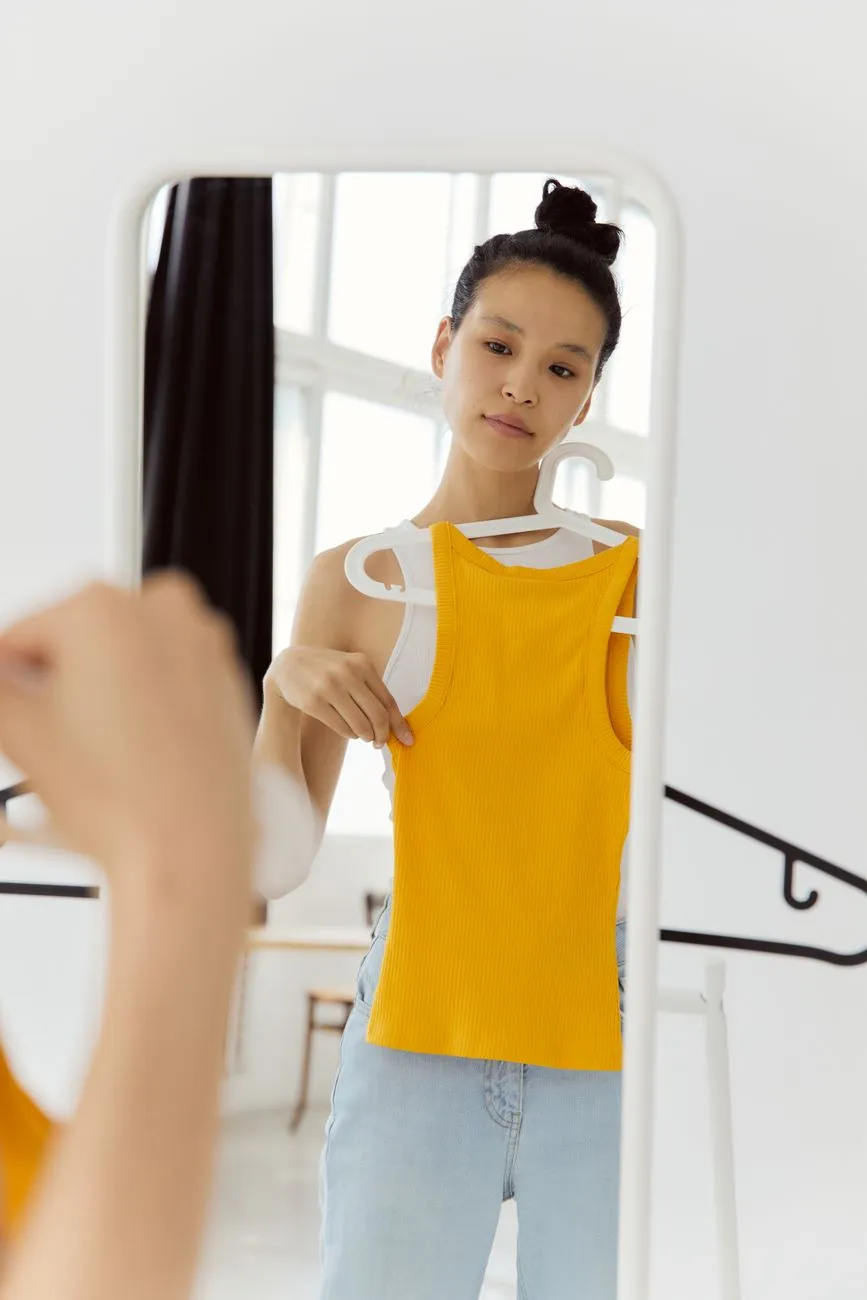
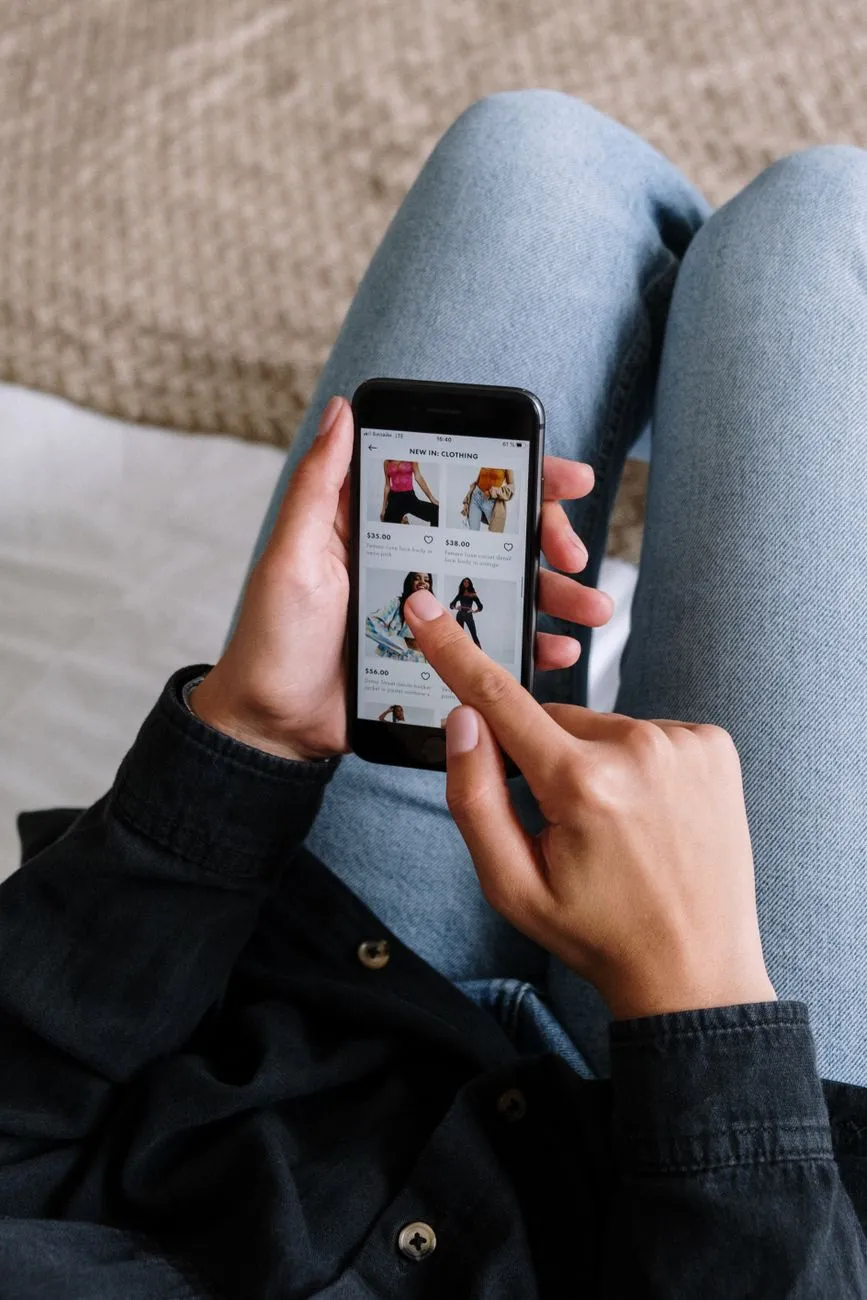 Photo: cottonbro studio / Pexels
Getting the most out of virtual try-on
- Try outfits, not just single pieces. You can try a top, a top with trousers, or a dress. A great top might not work with the trousers you already own, and you’ll only see that when the whole outfit is in front of you.
- Compare a few options. Try two or three similar pieces and line them up. Because your pose and background stay the same, the differences are easy to spot.
- Look at the colour next to your face. This is what a try-on preview shows best.
The clearer your photo, the closer the result. If you don’t have a suitable one yet, read how to take a full-body photo for AI try-on. And if you’re wondering how much to trust the preview, is AI try-on accurate? explains what the AI keeps and what it changes.
Macgi works in your phone’s browser with no app to install. The AI keeps your face, body shape, skin tone and background and changes only the clothes, so you see the garment on you rather than on an edited version of you. Your photos are used only to create your own try-on images; they’re never posted, shared or used to train AI.
Remember that a try-on image is an AI-generated preview. It shows shape and colour; it can’t tell you whether a top will be tight across the shoulders or loose at the waist. That’s what steps 1 and 2 are for.
4. Check the colour in real light
Product colours are usually edited to look their best. To get closer to the real thing:
- Look at customer photos in the reviews. Phone shots in ordinary lighting tend to be closer to the true colour than studio images.
- Read comments about colour, especially lines like “darker in person”, “lighter than the photo” or “looks more yellow in daylight”.
- Compare several images of the same colour. If the flat-lay shot and the model shot look different, the real colour is often somewhere in between.
- Turn your screen brightness up while browsing, and switch off night mode or blue-light filters, since they push every colour towards yellow.
White, black and neutrals are the safest bets. Pastels, earthy tones, olive and burgundy are the colours most likely to differ between screen and reality.
5. Read the return policy before you order
Check how many days you have to return or exchange, whether you pay for return shipping, whether tags need to stay on, and whether you get an exchange or a refund. Some items, like underwear, swimwear and heavily discounted pieces, often can’t be returned.
When the parcel arrives:
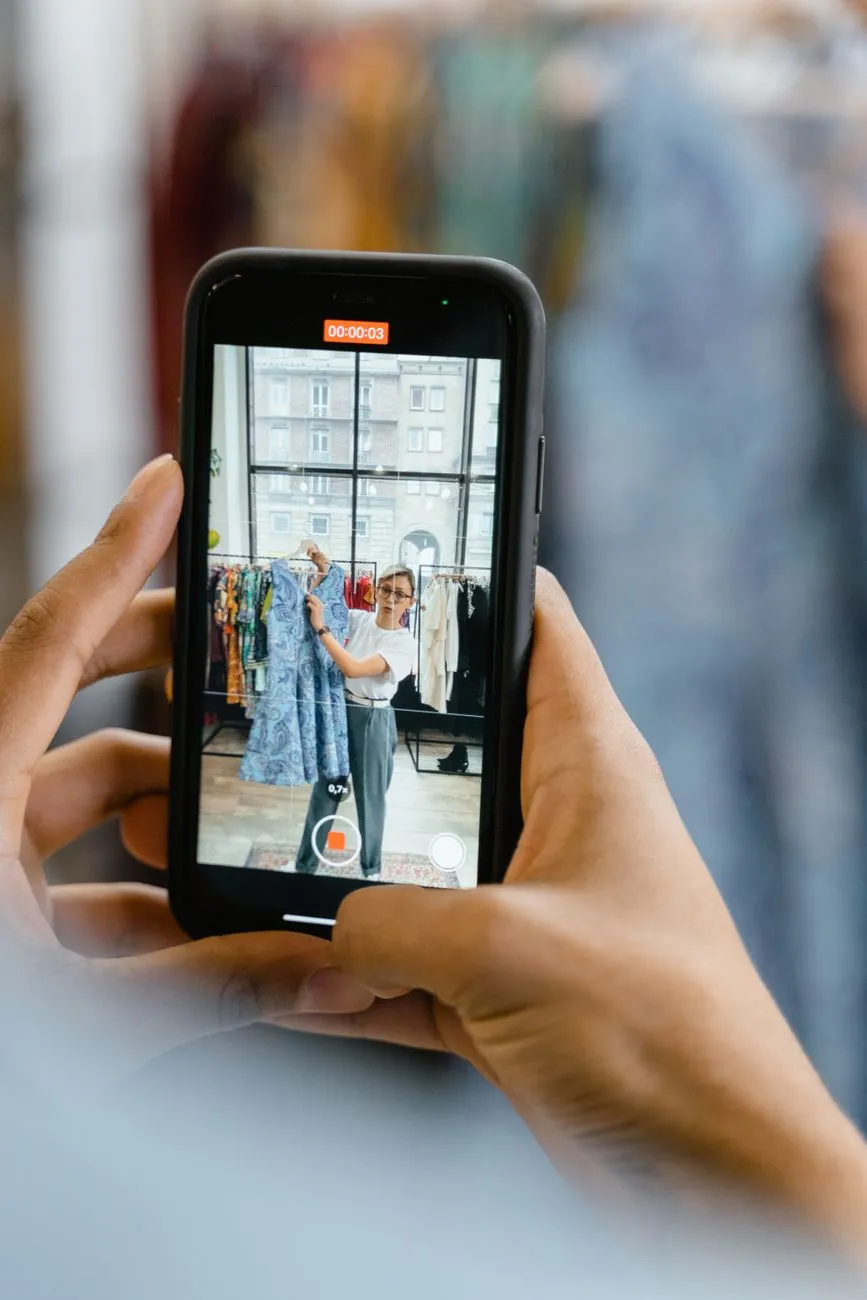
- Film yourself opening it, so you have evidence if something is damaged or wrong.
- Try it on the same day, in daylight, before removing any tags.
- If it doesn’t fit, start the return early instead of waiting until the deadline.
However carefully you choose, knowing the return conditions in advance takes the stress out of ordering.
 Photo: Darina Belonogova / Pexels
In short
Measurements handle size, trying clothes on a photo of yourself handles shape and colour, and real reviews plus a clear return policy protect you from surprises. Follow all five steps and you’ll send far fewer things back. The first time takes a little effort to measure and take your photo; after that, with both ready to go, everything is much quicker.
If you’d like help choosing shapes that suit your build, a body-shape guide such as what to wear for a pear body shape is a good place to start.
Frequently asked questions
Can trying clothes on online replace a real fitting room?
Not entirely. A real fitting room lets you feel the fabric and the actual fit. AI try-on lets you preview the shape and colour of many pieces quickly without leaving home. The two work best together.
Should I try single pieces or whole outfits?
Whole outfits if you plan to wear the pieces together. Single pieces are useful when you just want to compare colours or necklines.
Is my uploaded photo kept forever?
No. The temporary copy sent to the AI is deleted automatically within 24 hours. Photos you save in your profile can be deleted at any time.